
Tree wallpaper sounds simple, and then somehow it becomes a whole tiny mood decision. One minute, I’m looking for something pretty for my phone. Next, I’m judging birch trees, misty paths, pine branches, and dramatic forest shadows. Apparently, my screen now needs woodland cinema energy. The screen is small, yes, but the vibe is not small. Absolutely not. It becomes the small daily view that sneaks into every text, timer, and grocery list.
I tend to notice that tree and forest backgrounds do something different from busy patterns. They give a device room to breathe without turning it boring. Living in Orlando, I see bright green almost everywhere. So, I love when a screen brings fresh leafy energy without the heat. Because the heat has plenty of opinions.
This post is for scrolling, choosing, and giving your phone or tablet a prettier daily view. I’m not here to send you on a craft mission. Nobody needs another tiny project pretending to be “quick.” Instead, the goal is easier. Browse the tree and forest wallpaper designs in this post. Pick the one that fits your current screen mood. Then change your device wallpaper without needing a tech degree.
Some designs lean soft and peaceful. Others look moody, rich, and dramatic in the best way. A few may surprise you, because trees can go cozy, clean, romantic, earthy, and bold. That’s where this gets more fun than expected.
Some of the links on this page are affiliate links. That means if you click and make a purchase, I may earn a small commission at no extra cost to you. If you’re curious about the fine print, you can check out my full disclosure.
Why Tree Wallpaper Makes A Screen Look Calmer
Tree wallpaper works because it gives your eyes something pretty without yelling at them. A loud background can look cute for six minutes. Then your app icons start fighting for their lives. I’ve found that tree designs usually behave better on a screen. That sounds ridiculous, yet here we are.
The best forest-style backgrounds add texture without chaos. Leaves, branches, fog, bark, and soft light all create movement. However, they don’t usually compete with your clock, folders, or tiny red notification bubbles. That matters, because those bubbles already bring enough emotional damage.
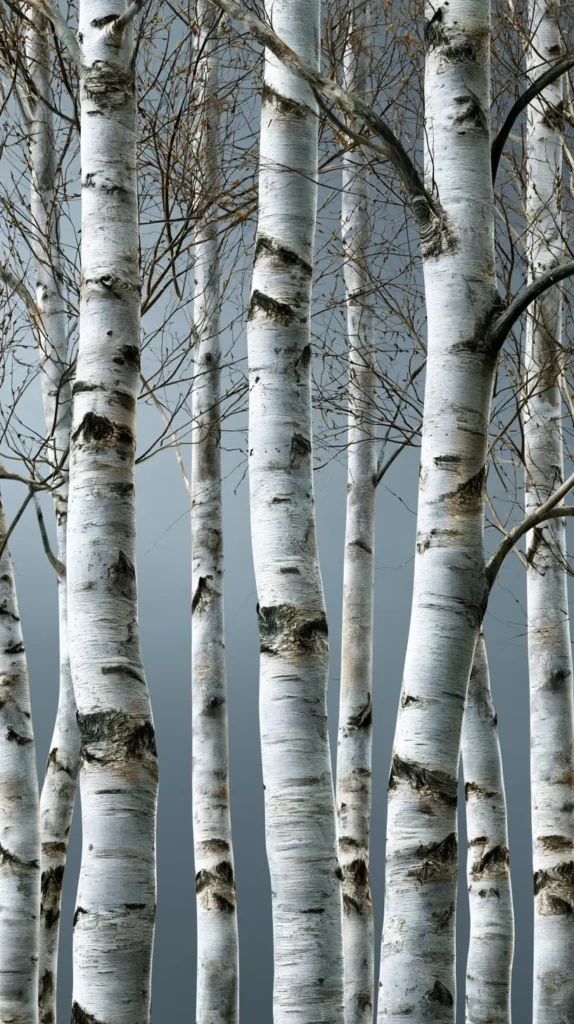
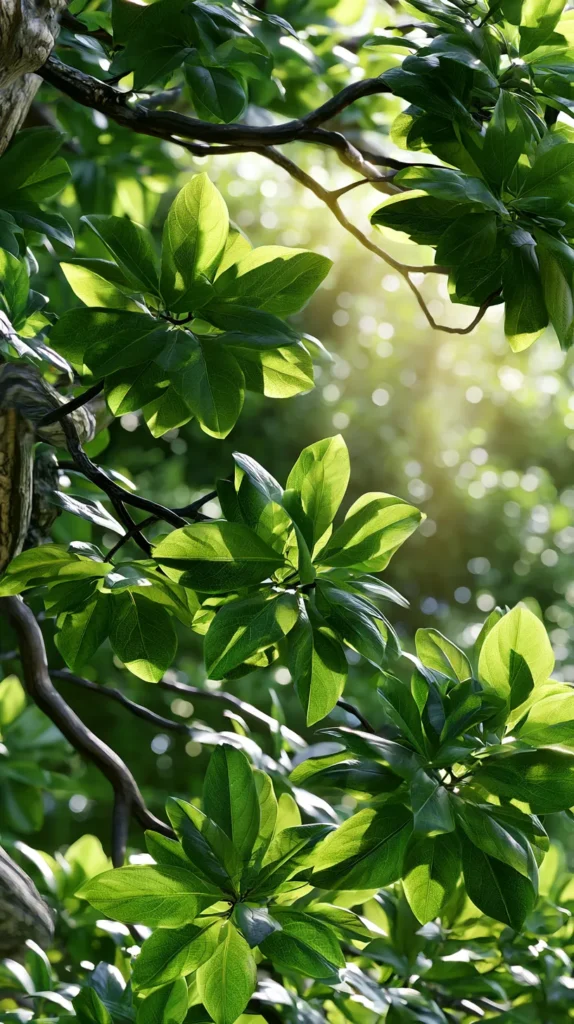
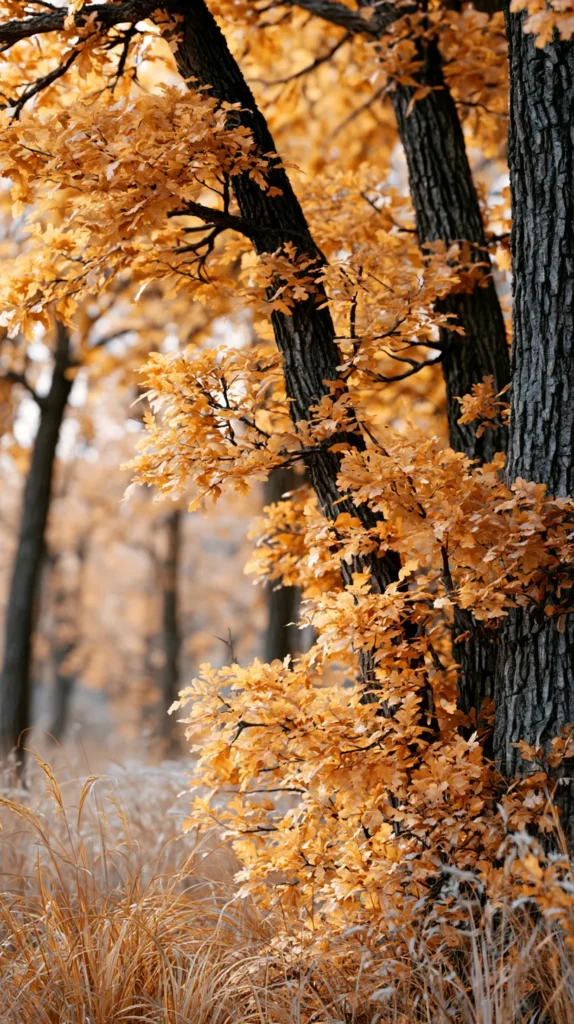
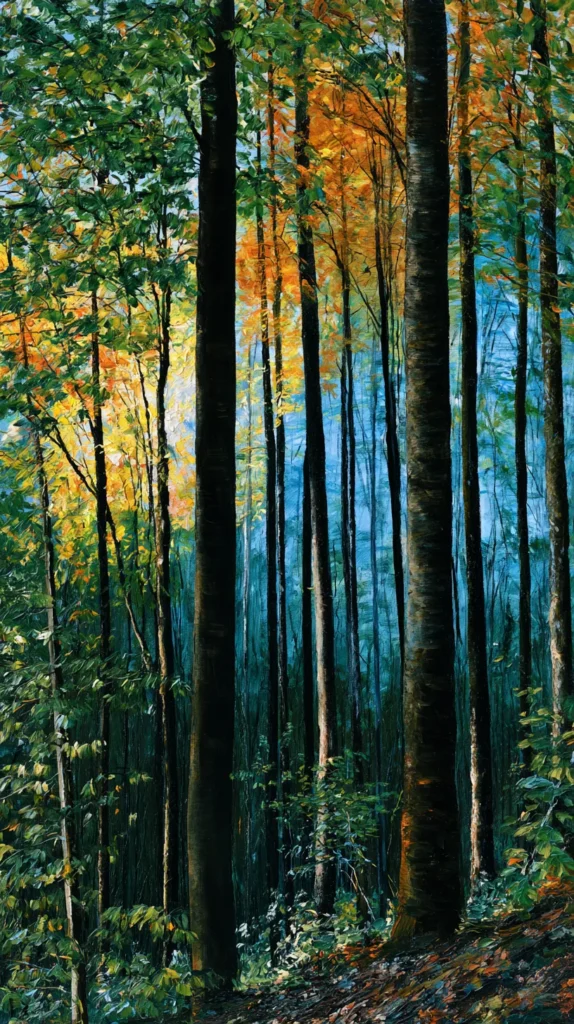
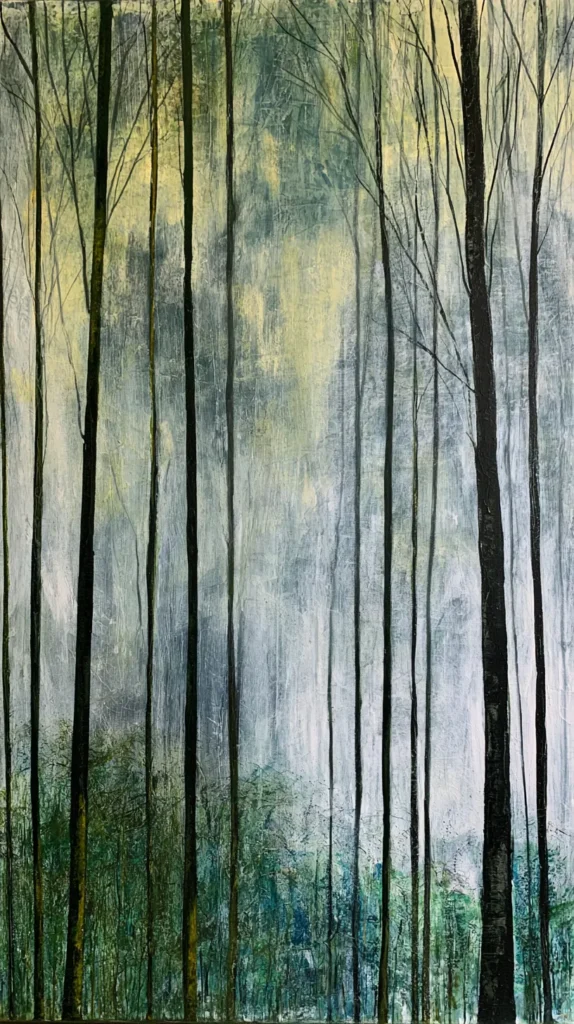
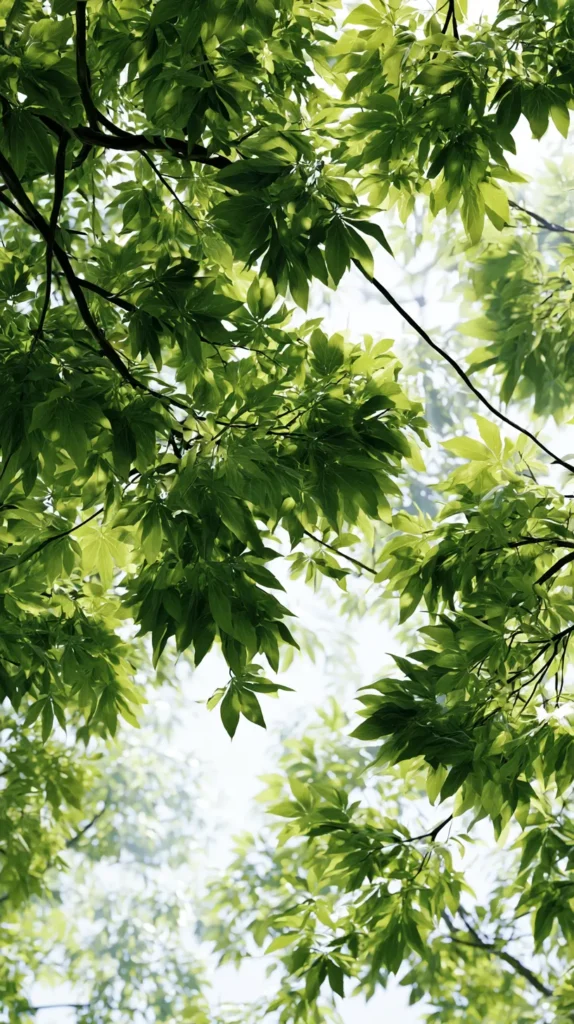
A tree wallpaper can also change the whole tone of your device. Bright green canopies look fresh and awake. A deep pine forest looks quiet and rich. A golden fall tree gives cozy energy without needing pumpkins everywhere. Meanwhile, a pale birch design keeps things clean and soft.
The funny part is that people often think nature wallpaper means plain. I fully disagree. Plain is a gray wall with no opinion. Tree designs can look simple, but still have depth. That’s the trick.
I’d treat the designs in this post like tiny screen outfits. Not in a fussy way, of course. More like, “What version of my brain needs to answer texts today?” Some days need calm. Other days need drama with excellent lighting. Both choices count. That tiny difference matters more than it should.
So, before picking the first pretty forest image, notice the mood. That one detail makes the choice much easier. It also saves you from picking something gorgeous. Because gorgeous can still make your home screen look like a leaf tornado.
Forest Wallpaper Designs For Every Little Screen Mood
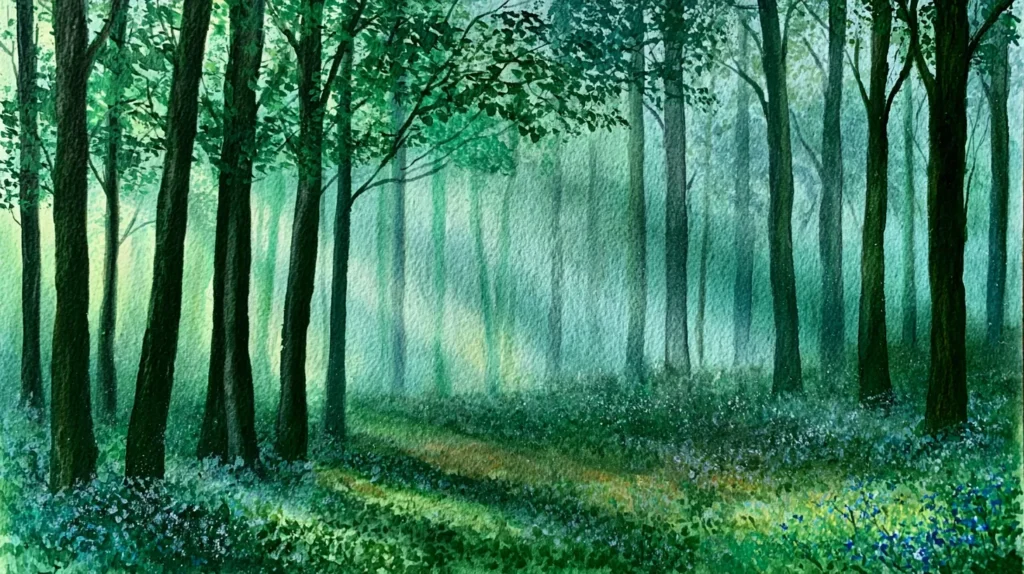
Forest designs are sneaky, because they look similar at first glance. Then you keep scrolling and realize each one has a whole attitude. Some are quiet and misty. Others look like the opening scene of a very tasteful mystery. I support both choices, depending on the day.
When readers browse the designs in this post, I’d look at mood first. A screen background gets seen constantly. So, it should match the energy you want. It should not just be the image that looks nicest for two seconds.
Here are a few tree and forest wallpaper moods worth noticing:
- Soft green forest designs work well for a fresh, clean phone screen.
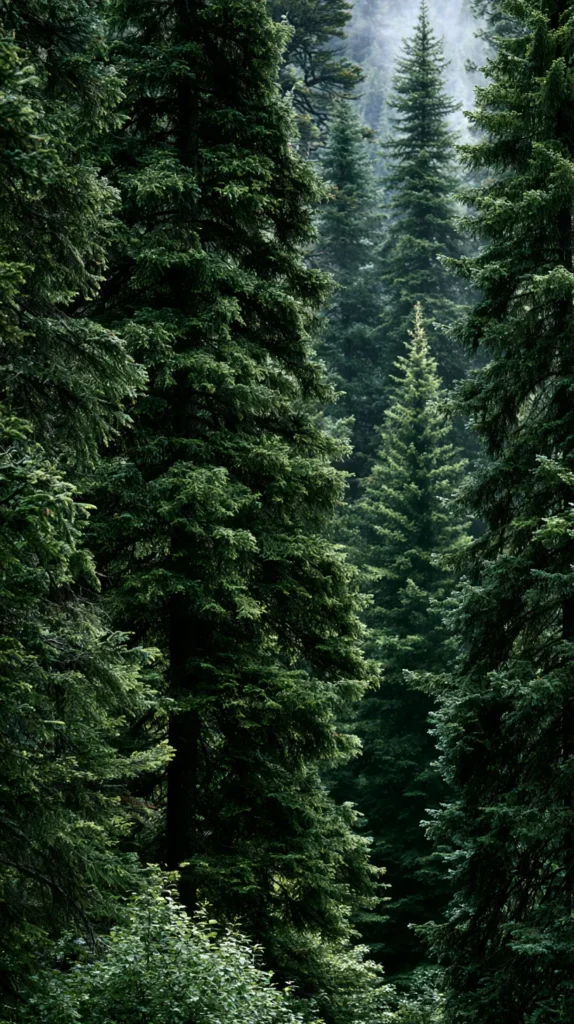
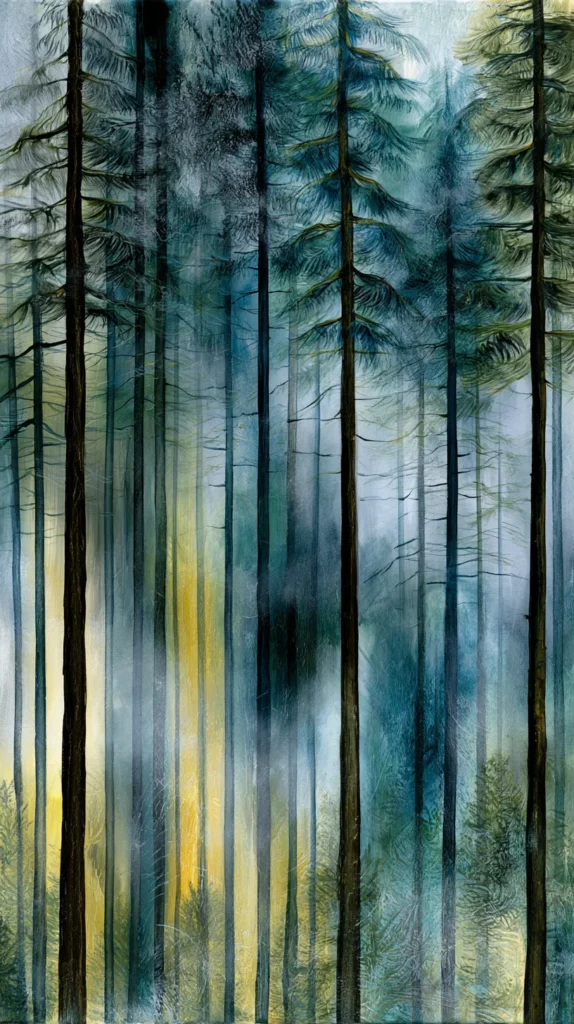
- Dark pine scenes look richer and more dramatic.
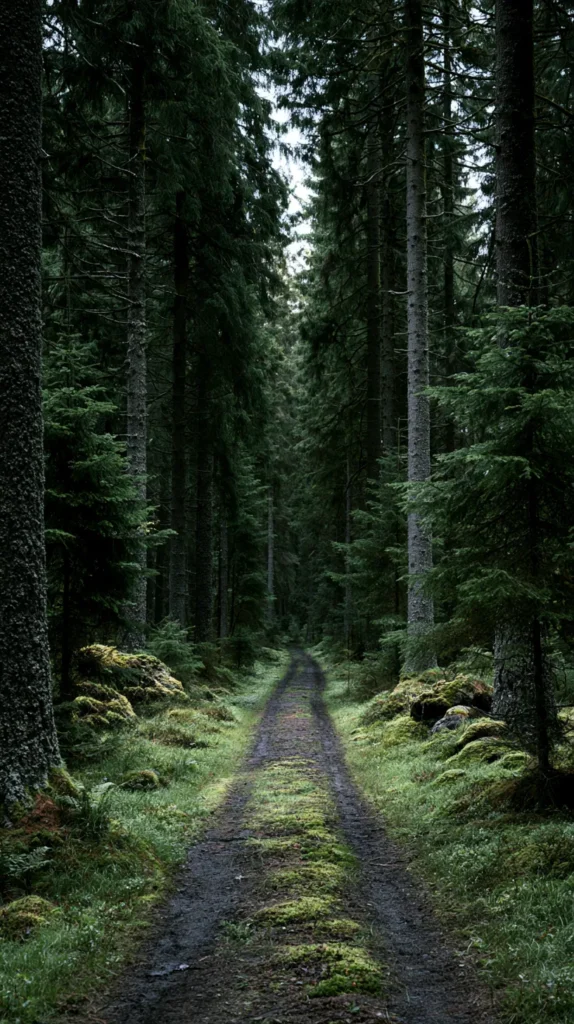
- Foggy tree paths add calm without looking too sweet.
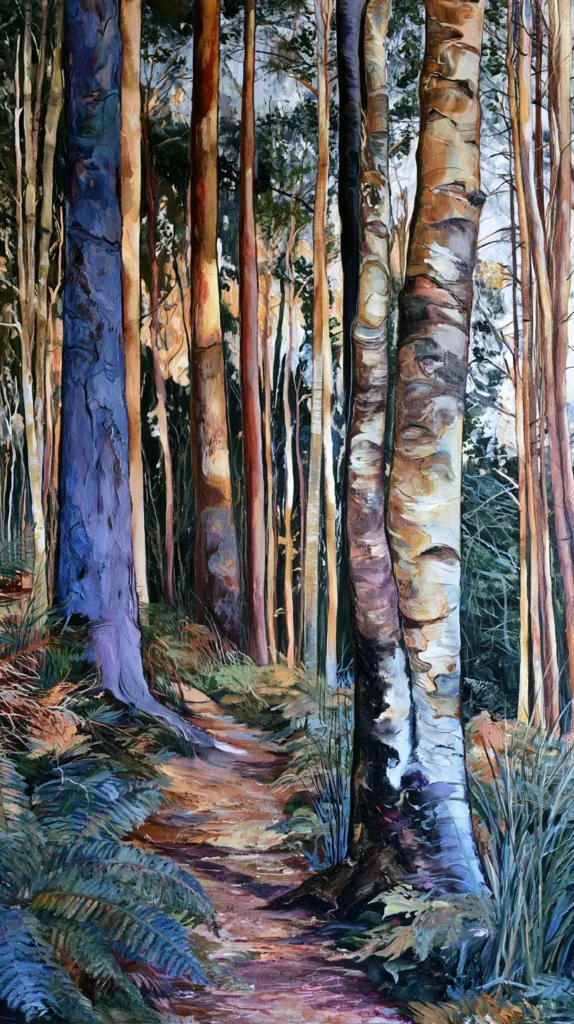
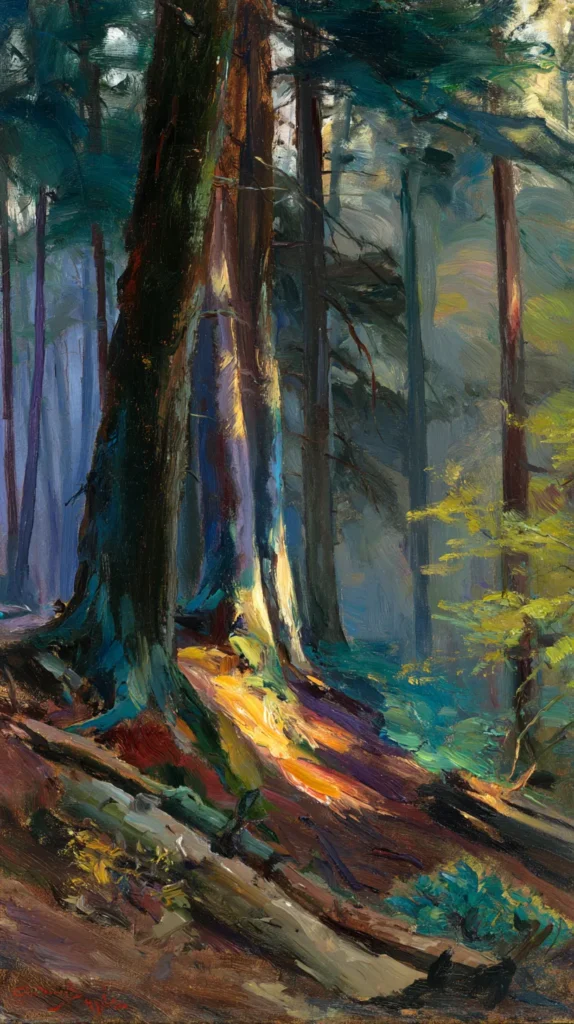
- Golden forest designs give cozy seasonal energy.
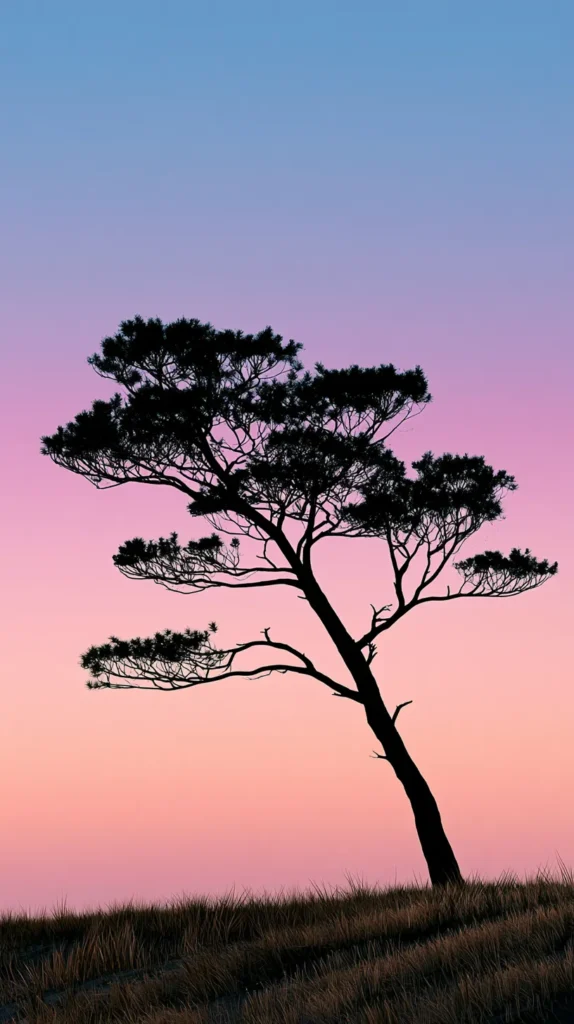
- Minimal tree silhouettes keep icons easy to read.
- Sunlit branches look bright, happy, and a little dreamy.
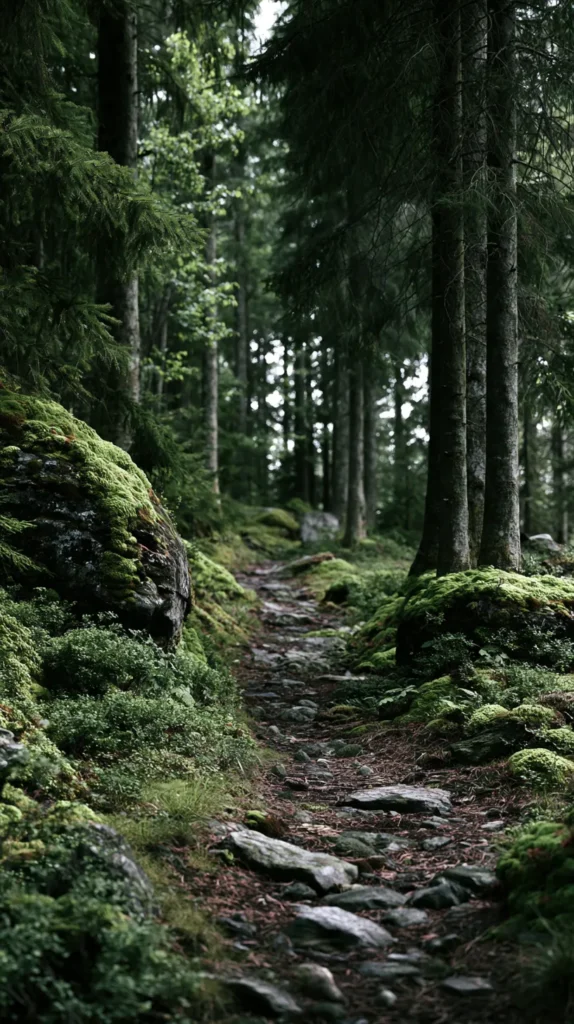
- Mossy woods add earthy color without going loud.
However, don’t assume the prettiest design is the best one. That sounds rude to the pretty design, but it’s true. The best wallpaper has to live behind your apps. A busy forest scene may look stunning alone. Then it can turn chaotic under widgets and icons.
A good tree wallpaper lets your screen breathe. It gives you a little visual escape without making you hunt for your calendar. That balance matters more than people admit.
I also like choosing based on device use. A phone needs cleaner contrast because it’s crowded. A tablet can handle wider forest scenes with more detail. Laptop screens can take the moody drama. They have room to show off, after all.
Tiny screen. Big standards.
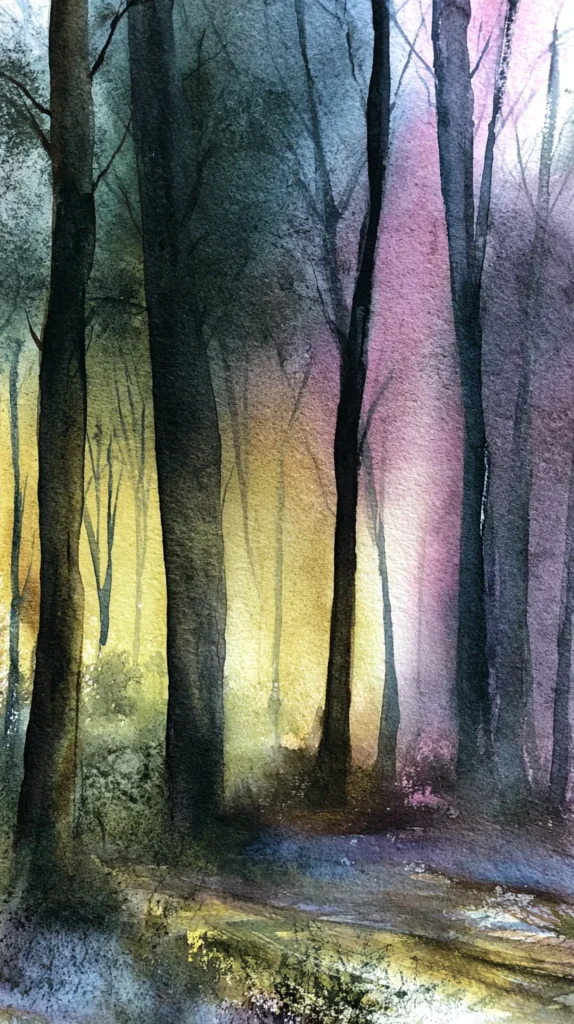
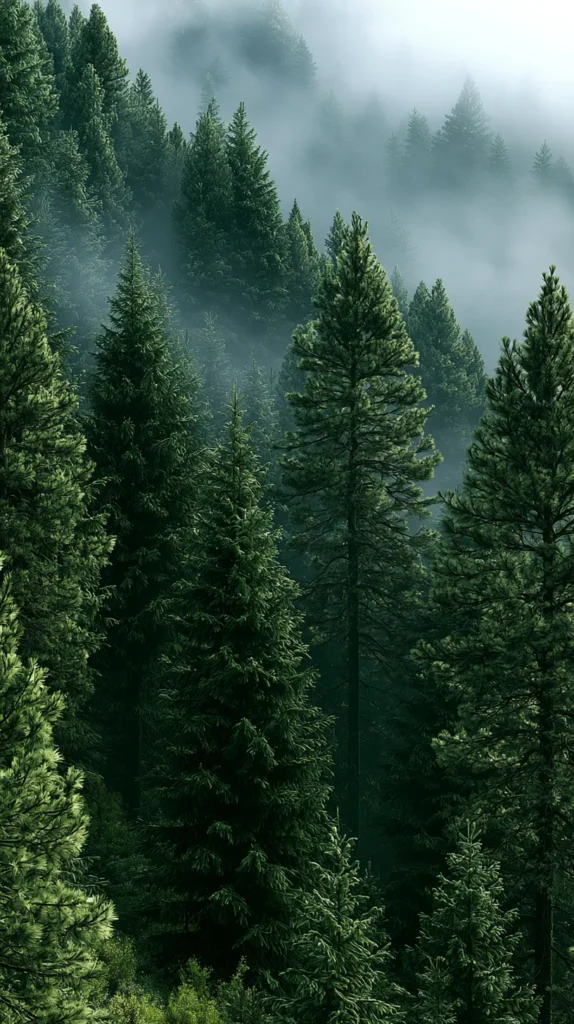
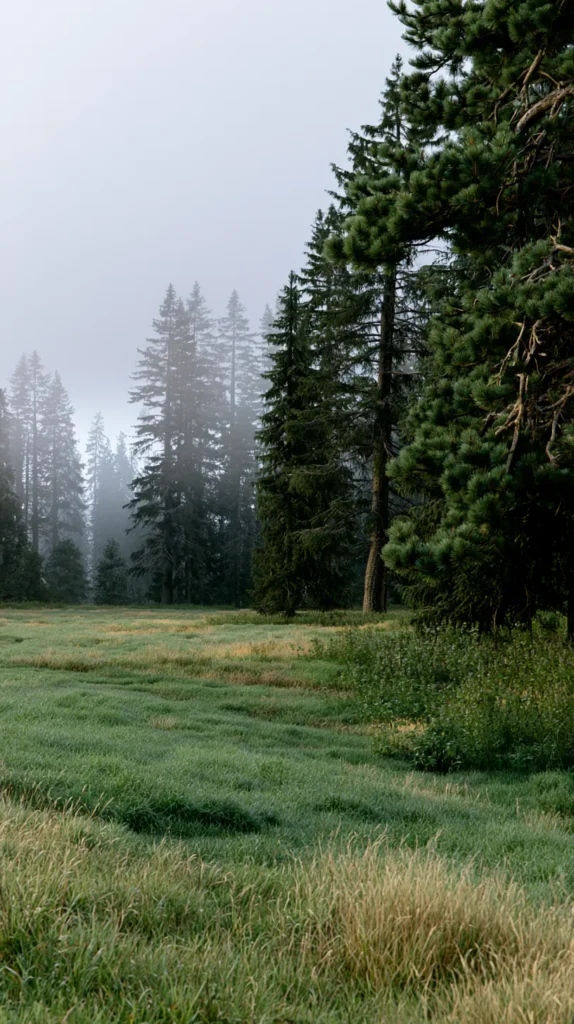
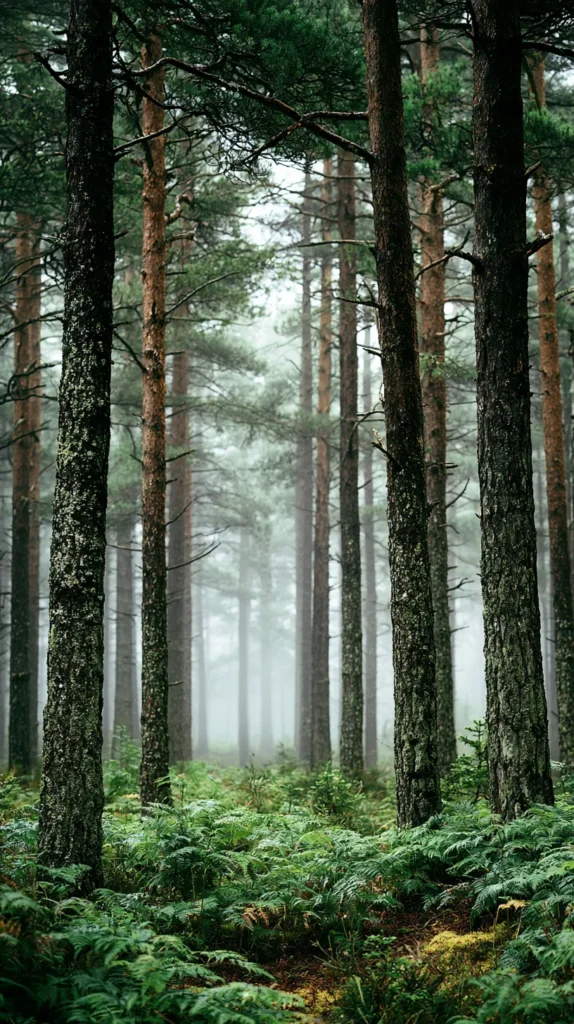
Tree Wallpaper That Looks Pretty Without Trying
Tree wallpaper can look polished without feeling too decorated. That’s the sweet spot. I don’t want my phone background doing jazz hands every time I check a message. I want pretty, but not needy. There’s a difference, and yes, I will be dramatic about it.
The easiest designs to love usually have one strong focal point. Maybe it’s a tall tree trunk. Maybe it’s a bright forest opening or a clean line of branches. Those details help the eye settle. Because of that, the whole screen looks calmer and more expensive. Even when the design stays simple.
Color also matters more than people expect. Pale greens look soft and fresh. Deep greens look rich. Warm browns add cozy texture. Gray fog brings a quiet, moody look. However, high-contrast branches can get tricky behind dark app icons.
That’s why I like tree designs with open space near the top or middle. The lock screen clock needs room. Widgets need room. Your brain needs room, too. A beautiful forest background can still annoy you when numbers vanish into bark shadows.
Another thing I tend to notice: the best tree wallpaper doesn’t beg for attention. It supports the screen. It sits there looking lovely while your apps do their tiny app jobs. That makes it much easier to keep longer.
And here’s the sneaky part. Simple nature designs often age better than trendy patterns. A cute graphic can date itself fast. Trees stay classic, because trees are not trying to win a trend cycle. They just stand there, looking impressive and mildly superior. That is commitment. Quiet detail can do a lot of work.
How To Pick A Forest Design That Fits Your Device
Choosing a forest design should not feel like selecting paint for an entire house. Still, a few quick choices can save you from screen regret. Because yes, screen regret exists. It happens when a gorgeous design makes every icon look lost in shrubbery.
Start with the device you use most. A phone needs quick readability. A tablet can handle more scenic detail. Meanwhile, a laptop can carry deeper shadows and wider forest paths. It can also handle dramatic tree lines with more confidence. That tiny filter helps.
Before picking your favorite tree wallpaper from the post, check these small details:
- Look for clear space behind the clock.
- Choose softer detail behind app icons.
- Use darker designs with light icons.
- Use lighter designs with dark icons.
- Avoid heavy branches across important widgets.
- Pick vertical designs for phones.
- Pick wider designs for desktops or tablets.
However, don’t overthink it into a spreadsheet moment. This should be fun, not a government form. If a design makes your screen look better, trust that first reaction. Your brain knows when it likes the view.
A common assumption says wallpaper should match your case or planner. Cute, but not required. I’d rather match my current mood. Fresh green works for a clean start. Misty woods suit a slower morning. Dark forest brings a richer, cozier look.
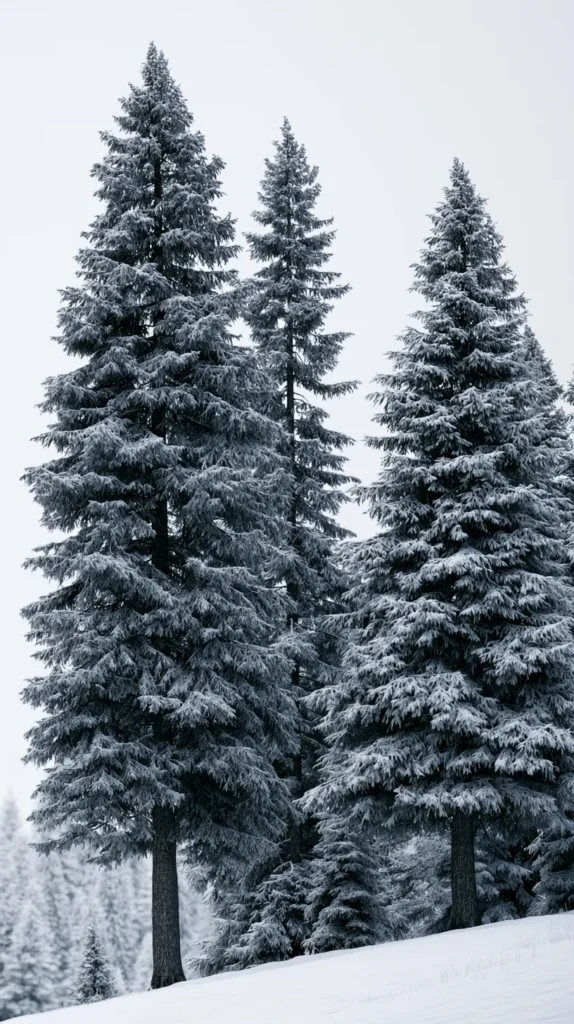
Also, keep seasonal choices in mind. A golden tree design can look gorgeous in fall. Snowy branches can work in winter. Bright leafy designs suit spring and summer. Still, no rules police will arrive for moody evergreens in July.
Thankfully, trees mind their business. Screens should, too.
Moody Forest Screens Are Not Just For Fall
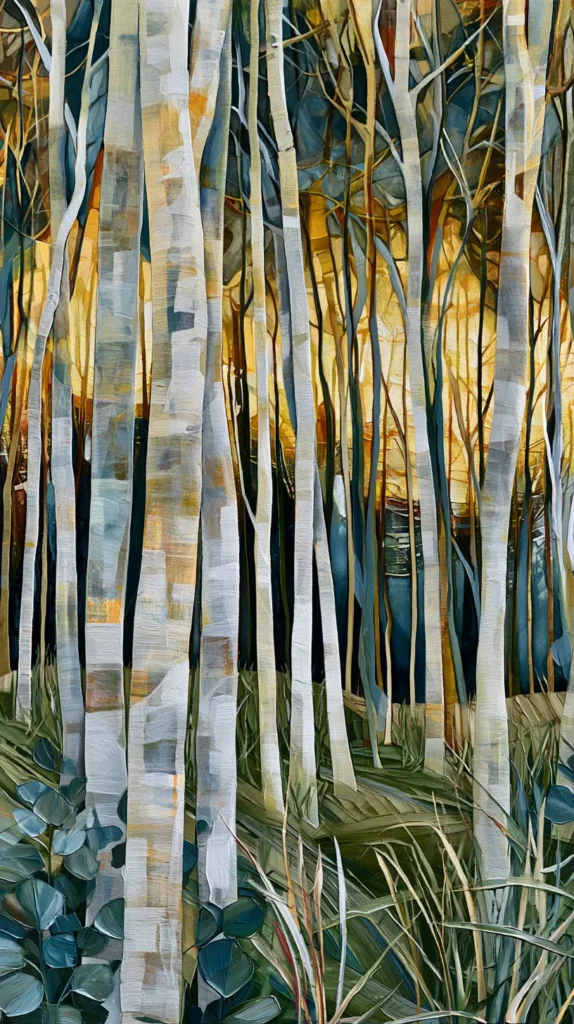
Moody forest designs often get shoved into the fall box. That seems unfair. Yes, deep woods look amazing with cozy weather. However, they also work when you want your device calmer and richer. They look far less like a candy wrapper, which helps.
A darker tree wallpaper gives the screen more contrast. App icons can stand out better, especially with soft blur or open shadow. That makes it practical, not just pretty. I love when something looks dramatic and earns its keep.
Forest wallpaper can also bring a little grown-up energy to a device. Not boring grown-up, because nobody needs that. More like, “I pay bills, but I enjoy mysterious pine paths.” That specific vibe deserves respect.
The trick is choosing mood without mess. A forest full of tiny branches may look busy. A dark path with soft trees on each side can look peaceful. Meanwhile, a close-up bark texture may add warmth without becoming a woodland documentary.
This is where contrast gets interesting. A light, airy tree design can look cheerful and clean. A dark forest scene can look restful and cozy. Neither choice wins forever. They just do different jobs.
I’d use moody designs when the screen already seems too bright or cluttered. Deep green, charcoal, brown, and foggy blue can quiet the whole thing down. Plus, they make pastel icons and simple widgets look extra pretty.
So, no, moody trees do not belong only to October. They can stay year-round if they suit your screen. Let the pumpkins fight their own seasonal battles. Your phone can have forest drama in March, and everyone will survive.
How To Change Tree Wallpaper On iPhone
Changing tree wallpaper on an iPhone is easier than it looks. Though, yes, Apple does enjoy adding tiny menus. Very on brand. Once you know where to tap, you can switch designs anytime. That means fresh lock screen energy with minimal nonsense.
First, save your favorite design from this post to your Photos. Then use the wallpaper settings to place it on your lock screen, home screen, or both. I prefer checking both screens before deciding. A design can look perfect on one and too busy on the other.
Here’s the simple iPhone path:
- Open the Photos app.
- Choose the tree wallpaper design you saved.
- Tap the share icon.
- Select Use as Wallpaper.
- Adjust the image with your fingers.
- Tap Add.
- Choose Set as Wallpaper Pair or Customize Home Screen.
Another option starts inside Settings:
- Open Settings.
- Tap Wallpaper.
- Tap Add New Wallpaper.
- Choose Photos.
- Select the saved forest design.
- Adjust the crop.
- Tap Add, then choose your screen options.
However, don’t skip the preview. That little preview saves you from clock chaos. If the time disappears into branches, zoom or shift the image. If your icons blend into leaves, try using the design only on the lock screen.
A tree wallpaper with open space at the top usually works best for iPhone lock screens. Meanwhile, softer patterns can handle the home screen better. The split choice can look intentional, which is always satisfying.
One more tiny tip: try the same design with a blurred home screen. Sometimes blur turns a busy forest into a calm backdrop. It’s the digital version of saying, “Let’s soften this whole situation.”
How To Change Forest Wallpaper On Android
Android phones give you a little more variety. That can be lovely or mildly annoying. Different brands place settings in different spots. Still, the main idea stays the same. Save the design, open wallpaper settings, choose the image, then set it.
Once you save a forest or tree wallpaper from this post, check your gallery first. That helps you make sure the file looks clear. A blurry background can ruin the whole mood fast. Nobody wants pixelated pine trees. Tragic.
For many Android phones, this path works:
- Open the Gallery or Photos app.
- Choose the saved wallpaper design.
- Tap the three-dot menu or More.
- Select Set as wallpaper.
- Choose Lock screen, Home screen, or both.
- Adjust the crop.
- Tap Set or Apply.
You can also try this route:
- Press and hold an empty spot on the home screen.
- Tap Wallpaper and style.
- Choose My photos or Gallery.
- Select the design.
- Preview the lock screen and home screen.
- Tap Set wallpaper.
However, Samsung, Google Pixel, Motorola, and other Android phones may word things differently. The buttons may shift around, because phones enjoy tiny personality quirks. Still, look for “wallpaper,” “style,” “gallery,” or “photos.” Those words usually get you to the right place.
A tree wallpaper can look different after cropping. So, watch the edges before setting it. If the best part gets chopped off, zoom out or choose another design. Vertical forest images usually work best for phones. Wide designs can suit tablets better. That tiny check keeps the choice easy.
Also, try using separate images for your lock and home screens. A detailed forest can shine on the lock screen. A softer tree design can keep the home screen readable. That tiny swap can make the whole device look cleaner.

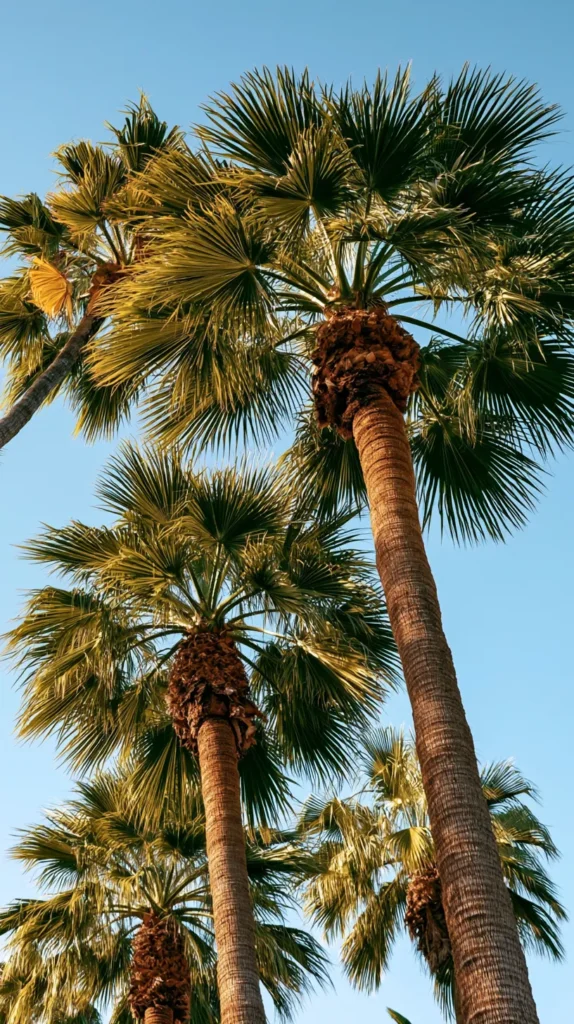
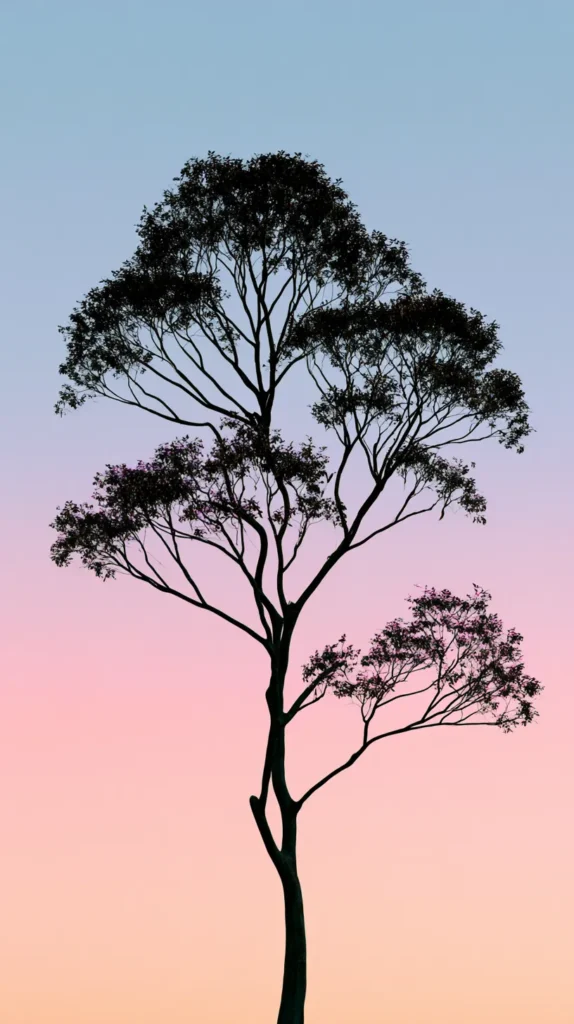
Tree Wallpaper FAQs For Curious Screen Scrollers
What kind of tree wallpaper works best for a phone? A vertical design usually works best for a phone. I’d look for open space near the top, because the clock needs breathing room. Soft leaves, tall trunks, and misty paths usually display well.
Can I use the same wallpaper on my lock screen and home screen? Yes, and sometimes it looks beautiful. However, a detailed tree wallpaper may work better on the lock screen only. The home screen often needs a softer design, especially with widgets.
Should I pick light or dark forest wallpaper? Choose based on your icons, not just your favorite color. Light designs look fresh and clean with darker icons. Dark forest designs look rich and cozy, especially with lighter icons or simple widgets.
Are tree and forest designs good for tablets? Yes, tablets can handle more detail than phones. A wider forest path, tall tree line, or scenic canopy can look gorgeous on a bigger screen. However, keep important widgets away from busy branches.
How often should I change my device wallpaper? Change it whenever your screen starts looking stale. Some people love seasonal swaps, while others keep one favorite for months. I think tree designs make that easy, because they can look calm or dramatic.
Can tree wallpaper work for a clean aesthetic? Absolutely, and this is where trees get underrated. A simple branch, pale forest, or soft green background can look very clean. The key is choosing gentle detail instead of a packed forest scene.
Can I save more than one design? Yes. Save a few favorites so you can swap them later. Different days deserve different trees, clearly.
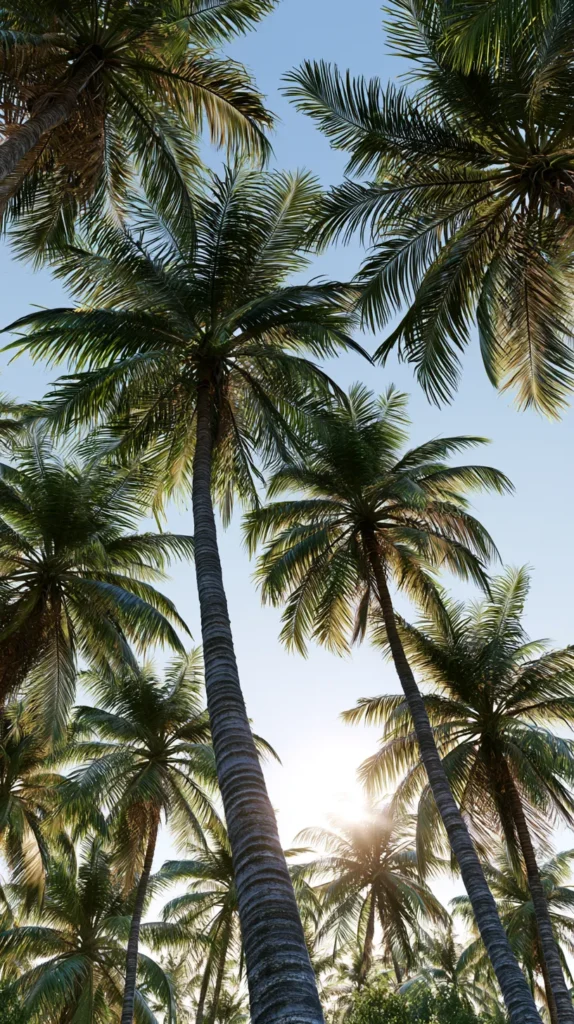
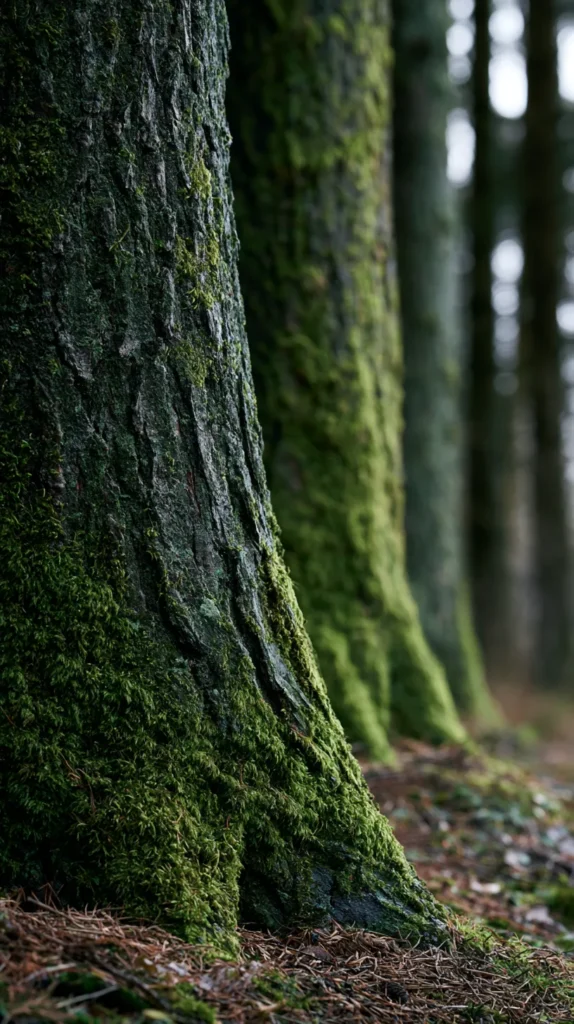
The Tiny Screen Upgrade That Somehow Matters
I love small visual changes that make daily things nicer. Not in a “redo your entire life by Tuesday” way. More like, “This screen looks prettier now, and that counts.” Because it does. We stare at these devices constantly. So, the background might as well earn its little rectangle of attention.
Tree wallpaper is one of those easy choices that can shift a screen without making it fussy. It can look calm, moody, fresh, woodsy, soft, or dramatic. Better yet, it lets the designs in the post do the work. You scroll, choose, save, and set. Lovely. No craft table required.
Living in Orlando, I’m surrounded by green most of the year. That makes leafy screens seem natural to me. Still, I also love the contrast of misty forests and darker trees. My weather rarely gives me that cozy woodland drama. My phone can have the atmosphere my driveway does not.
Pinterest may send someone looking for a quick background idea. Yet a good design can make them stay longer. It can make them compare, zoom in, and choose with tiny confidence. That’s the fun part. It’s not just “pretty tree.” It’s a tiny mood decision with surprisingly strong opinions.
So, pick the design that makes your screen look calmer, richer, or more pulled together. Then let your apps sit politely on top of it like they have manners for once. That little change is quiet, but it still counts.